EECS Instructional Support Group, Department of Electrical Engineering & Computer Science
[ ISG home page ] [ who we are ] [ send us email ] [ search ] [ FAQ ]

Connecting
to the EECS Instructional Computers

Topics:
  • How Do I Get an Account?   [grad students]
  • How Do I Find a Lab or a Logon Server?
  • How Do I Connect using a Modem?
  • How Do I Connect over the Network?
  • How Do I Copy Files Between Computers?
  • How Do I Display UNIX Graphics to My Computer?
  • How Do I Manage Email?
  • How Do I Find Software?
  • How Do I Access Newsgroups?
  • How Can I Be Sure My Password and Files are Private?
  • How Do I Set a Second Password or Password-less Access?
  • How Do I Login from Home?

  • How Do I Get an Account?

    Students in EE and CS classes can get one or more of these accounts from EECS:

    1.   Instructional "named" account:

    • Generalized account for many classes.
    • EECS and CS majors keep them until they graduate.
    • Get one by logging in as 'newacct'   (passwd: 'newacct')
      in 199 Cory, 273 Soda or over the net using ssh or putty to cory.eecs.berkeley.edu.   If you are not enrolled via TeleBears, submit an Account Request Form (from 386 Cory, or print the form here) and obtain the appropriate signature so you can be authorized to run 'newacct'.
    2.   Instructional "class" account:

    • Specialized account for a specific class.
    • Only good for 1 semester.
    • Get one from your instructor in class.
    both "named" and "class" accounts:

    See http://inst.eecs.berkeley.edu/webacct for a summary of your instructional accounts and print quotas.


    Users with EECS research accounts:

    Students with existing EECS research accounts need to submit a request for additional access to the Instructional computers and printers.   To add Instructional privileges to an existing account, login as 'newacct'   (passwd: 'newacct') as described above.

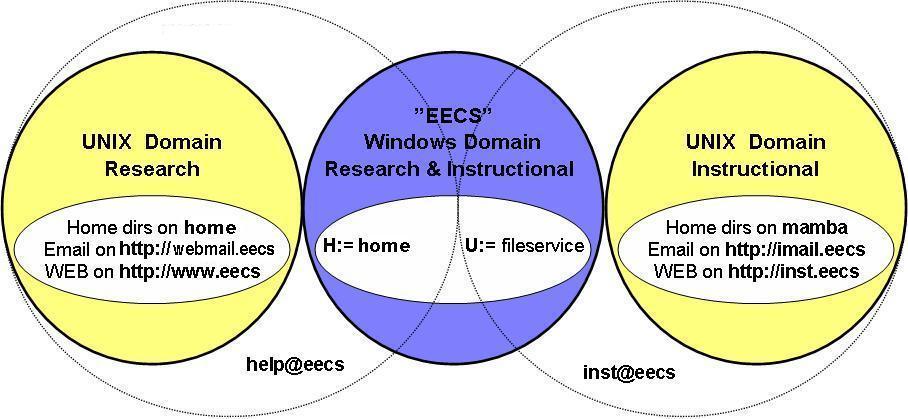
    acct-diagram-Sp09.jpg
    Computer accounts in EECS
    (Research and Instructional accounts use different computer resources)

    EECS grad students are issued a research account, which uses computers, printers, email, WEB sites, software and wireless that are supported for research.

    The research account is your primary account.

      EECS grad students can also request an instructional account, which uses computers, printers, email, WEB sites and software that are supported for classes.

    You may need the instructional account for software or computers that classes use.


    Here are some distinctions between the research and the instructional accounts:

    Windows password:
    • Instructional and research Windows computers are in same domain, so the logon names and passwords are the same.
    • Your research Windows account will work on the instructional computers, with the same password.
    UNIX password:
    • Instructional and research UNIX computers have different domains, so the passwords differ even though the login names are the same.
    • Your research UNIX account will not work on the instructional computers, but if you request an instructional UNIX account (using 'newacct'), you will get one with the same login name as your research UNIX account (but with a different password...)
    home directories:
    • Instructional UNIX home dirs are on mamba.cs
    • Research UNIX home dirs are on home.cs
    • Instructional Windows home dirs are on fileservice.eecs (U:)
    • Research Windows home dirs are on home.cs (H:)
    Email address:
    WEB page:
    Logon servers:
    • Instructional logon servers include cory.eecs (UNIX),   iserver2.eecs (Windows).
    • Research logon servers include login.eecs (UNIX),   winterm.eecs (Windows).
    Wireless network:
    • Instructional people use "AirBears"
    • Research people can also use "EECS"
    Help:
    • Instructional support is inst@eecs (386 Cory, 333 Soda)
    • Research support is help@eecs (395 Cory)
    Please see Finding Computer Resources in EECS for additional comparisons.
    Please see microsoft.help for information about connecting to all of your home directories at the same time.


    How Do I Find a Lab or a Logon Server?

  • EECS Instructional labs:   located in Cory Hall, Soda Hall and Sutardja-Dai Hall
  • UNIX login servers:   you can login to several servers using 'ssh' or 'putty'.
  • Windows login servers:   you can login to several servers using Remote Desktop Connection.

  • How Do I Connect using a Modem?
    How Do I Connect over the Network?
    How Do I Copy Files Between Computers?

  • Secure password software is REQUIRED to login to our UNIX systems
    Putty/WinSCP/Xming replace SSH/Exceed on Windows (July 2008)   [download free 'ssh' or 'putty' ]

  • off-campus network access reduced because of attacks:   security.help

  • Connectivity software from laptops and home computers:

  • Logins and file transfers from EECS and non-EECS computers:

    if you are on an EECS UNIX or MacOSX computer:
    1. You can login to one of our UNIX servers using 'ssh'.   Enable X11 tunneling before you login so UNIX graphics programs can open windows on your local computer (usually 'ssh -X').   You can copy the files to other UNIX accounts using 'sftp', the SSH file transfer program, which comes with the SSH package.   See ssh.help for more information about SSH on UNIX.

      All EECS UNIX systems have 'ssh' and 'sftp'.   Sample usage (for user 'jdoe'):

        /usr/sww/bin/ssh jdoe@cory.eecs.berkeley.edu
        /usr/sww/bin/sftp jdoe@cory.eecs.berkeley.edu:public_html index.html-new

    2. On MacOSX, you can logon to one of our Windows servers using the Remote Desktop Connection client.   You can set it so that the disks on your local computer are connected to the logon session on our server. When you start your RDC program, type in the name of our Windows server, then select Options->Local Resources->Local devices and click on "disks", then on "Connect".   Your local disks will appear in the My Computer window on our server, and you can drag files to and from them.

      On other UNIX systems, you can copy files to a Windows account using the UNIX 'smbclient' command.   See samba.help for more information.   For example (for username 'jdoe'):

        /usr/sfw/bin/smbclient '\\fileservice\named' -U jdoe EECS

    3. If all this fails, you could use email or USB memory to copy the file.
    if you are on a non-EECS UNIX or MacOSX computer:
    1. You can login to one of our UNIX servers using 'ssh'.   Enable X11 tunneling before you login so UNIX graphics programs can open windows on your local computer (usually 'ssh -X').   You can copy the files to your EECS UNIX account using 'sftp', the SSH file transfer program, which comes with the SSH package.   Most Linux and MacOSX systems include SSH.   See ssh.help for more information about SSH on UNIX.

    2. See ftp.help for free programs that you can install at home and use to transfer files from your account on the instrcutional UNIX computers.

    3. On MacOSX, you can logon to one of our Windows servers using the Remote Desktop Connection client.   You can set it so that the disks on your local computer are connected to the logon session on our server. When you start your RDC program, type in the name of our Windows server, then select Options->Local Resources->Local devices and click on "disks", then on "Connect".   Your local disks will appear in the My Computer window on our server, and you can drag files to and from them.

      On other UNIX systems, there is no way to connect directly to an EECS Windows directory to access or copy files.   You cannot use 'smbclient' (see above), because the related network ports are blocked from off campus for security reasons.

    4. If all this fails, you could use email or USB memory to copy the file.
    if you are on an EECS Windows computer:
    1. You can login to one of our UNIX servers using Putty.   Enable X11 tunneling and start Xming before you login so UNIX graphics programs can open windows on your PC.   You can copy files to your EECS UNIX account using WinSCP.

      All EECS Windows systems have Putty, WinSCP and Xming.   You can locate the program from the Start\Programs menu.

    2. You can logon to one of our Windows servers using the Remote Desktop Connection client.   You can set it so that the disks on your local computer are connected to the logon session on our server. When you start your RDC program, type in the name of our Windows server, then select Options->Local Resources->Local devices and click on "disks", then on "Connect". Your local disks will appear in the My Computer window on our server, and you can drag files to and from them.

    3. You can connect to your UNIX home directory (the Instructional UNIX file server is "mamba").   If your username were 'jdoe', you would type this in the Windows Start->Run... text entry box:

        net use X: \\mamba\jdoe /user:eecs\jdoe

    4. You can connect to another EECS Windows directory (the Instructional Windows file server is "fileservice").   If your username were 'jdoe', you would type this in the Windows Start->Run... text entry box:

        net use Y: \\fileservice\named\jdoe /user:eecs\jdoe

      Here are examples of home directory paths for EECS Windows accounts:

        \\fileservice\named\jdoe   (Instructional named account)
        \\fileservice\ee20n\sp07\ee20n-ab     (Instructional class account)
        \\home\home\jdoe   (non-Instructional account)

      If you are prompted for a Username and Password, here is an example:

        Username: EECS\jdoe
        Password: [ Windows password for jdoe ]

      Note that Windows can remember only ONE user's permissions per file server, so if you try to connect to a second home directory on the same server, you will not be asked for another Username and Password.   Instead, you will be connected using the permissions of the first connection you made.   So it is likely that the second connection will not have full access permissions or will not be permitted at all.   The only way you can get full acess to the second home directory is to logout of Windows, login again and connect to that home directory first.

    5. If all this fails, you could use email or USB memory to copy the file.
    if you are on a non-EECS Windows computer:
    1. You can login to one of our UNIX servers using Putty.   Enable X11 tunneling and start Xming before you login so UNIX graphics programs can open windows on your PC.   You can copy files to your EECS UNIX account using WinSCP.

    2. See ftp.help for free programs that you can install at home and use to transfer files from your account on the instrcutional UNIX computers.

    3. You can logon to one of our Windows servers using the Remote Desktop Connection client.   You can set it so that the disks on your local computer are connected to the logon session on our server. When you start your RDC program, type in the name of our Windows server, then select Options->Local Resources->Local devices and click on "disks", then on "Connect". Your local disks will appear in the My Computer window on our server, and you can drag files to and from them.

    4. If all this fails, you could use email or USB memory to copy the file.
    Using email or removable media to transfer files:
    1. You can copy files by emailing the files to yourself as attachments and downloading them from the email server to the computer (UNIX or Windows) where you read the email.   Instuctional accounts can logon to imail.eecs.berkeley.edu to read and post email.

      See "tar.help" "man tar" and "man uuencode" for methods of bundling UNIX files for delivery by email.

    2. You can copy files to removable media such as a CD-RW or DVD-RW disk, a flash memory card or a USB memory stick.   See multimedia.help for the current location of these drives in the EECS Instructional labs.


  • How Do I Display UNIX Graphics to My Computer?

    Summary:


    1. Don't use the telnet programs that come with Exceed, X11, etc.
    2. Start XWindows, such as Xming (Windows) or X11 (Mac, Linux).
      UNIX workstations in the EECS labs are already running XWindows.
    3. Login to a UNIX server using putty (Windows) or ssh (UNIX, Mac) with "Forward X11" enabled.
    4. Type "xterm" or etc in the UNIX window.   A window should pop up on your PC or Mac screen.

    You can login to our UNIX systems and run programs there that display their graphical output on your computer screen. To do this, you need an XWindows server running on your computer.   You can download free software for this.

  • On UNIX computers, XWindows is standard software. See ssh.help for information about enabling "Forward X11" when logging in with ssh.
  • On MS Windows computers, we use the open source program Xming.   This replaced Exceed, which is overly complicated because of features that we don't need.
  • On MacOSX computers, most people use Apple's X11, found at http://www.apple.com/macosx/features/x11/download/.   This software is included in MacOSX starting with MacOSX 10.3.
  • On pre-MacOSX computers, XTen is a commercial ($175) version of XWindows.
  • To login to UNIX and run XWindows programs from a MS Windows computer, follow these steps:

    1. Open a 'Putty' window on the PC, enable "X11 Forwarding" and login to your UNIX account.
    2. Start 'Xming' on the PC.
    3. To verify that you have X11 working, type an XWindows command such as "xterm" at the UNIX command line in the Putty window.   A window from the UNIX system should pop up on your screen.   Note that the Xll tunneling sets the UNIX DISPLAY variable to something with "localhost" in it, and you should not change that.   You can verify that it is set right by typing "printenv DISPLAY" in the Putty window.

    Troubleshooting XWindows problems:


    How Do I Manage Email?

    Our users often have more that one email account at UCB, including:
  • EECS Instructional IMAP mail server: imail.eecs.berkeley.edu   (EECS Instructional UNIX accounts)
  • EECS research IMAP mail server: webmail.eecs.berkeley.edu   (EE and CS grad students and staff)
  • Central Campus IMAP mail server: calmail.berkeley.edu   (all UCB students and staff)
  • Central Campus mail list server: lists.berkeley.edu   (all UCB students and staff)
  • You can decide which email address to give out and whether to have one address forward email to another.

    Email for EECS Instructional UNIX accounts:

  • Empty INBOX?   Your email is on http://imail.eecs.berkeley.edu.   In October 2006, we stopped exporting /var/mail to all computers. If you use pine on UNIX and find that your INBOX is empty on the Instructional computers, you probably need to update the way you read email.   You can simply logon at http://imail.eecs.berkeley.edu to read and send email via the EECS Instructional email server.   To set up spam filtering, run this command in your UNIX account: /share/b/adm/bin/instmail.pl

  • Email sent to addresses such as _____@cory.eecs.berkeley.edu or at any other Instructional UNIX computer will be delivered to imail.eecs.berkeley.edu. We typically refer to the Instructional accts as being "@cory", because cory.eecs (also known as cory.cs) has been our most well known computer for many years.

  • To read and send email, you need to logon to our email server first, either using the Imail WEB mail client or an email client that you have installed on your own computer:

    1. Imail WEB mail client:   Just login to http://imail.eecs.berkeley.edu using your Instructional UNIX account.   You do not need to configure it yourself.

    2. Your own email client:   You can configure an email client such as Firefox, Outlook, Eudora, mutt or pine to logon to our email server.   Here are instructions for configuring an email client for CalMail and Imail:   https://calmail.berkeley.edu/docs/client.html

      The CalMail instructions also work for Imail; just replace the server name calmail.berkeley.edu with imail.eecs.berkeley.edu in the instructions and use your EECS Instructional UNIX logon name and password.   Depending on which email client you are using, you will probably find the place to enter this information under a "Preferences" or "Options" menu, or in a configuration file.

      Here is the information that is needed for Imail:

      Purpose: Name: Settings:
      news server from on-campus; no password news.csua.berkeley.edu not SSL, no logon required, not SPA, port 119
      news server from off-campus; password required (see new USENET server) not SSL, requires logon, not SPA, port 119
      incoming email server imail.eecs.berkeley.edu IMAP, requires SSL, not SPA, port 993
      incoming email account name login@imail.eecs.berkeley.edu "login" = your Instructional UNIX account name
      outgoing mail server (ask your ISP)   * typically it's just "mail" * typically it's POP, not SSL, port 25 *
      outgoing email account name you choose this you configure this in your email client

      * Many ISPs block port 25 traffic to any but their own mail servers, to cut down on spam delivery. Alternatively, EECS faculty, grad students and staff with funded EECS accounts can login to "gateway.eecs.berkeley.edu" via port 587 for outgoing email service. See the EECS email page for details.

  • Email that is delivered to imail.eecs.berkeley.edu is stored in "folders" (UNIX files, really) in one of these places in your EECS Instructional UNIX account:
    1. ~yourlogin/mbox, if that file exists
    2. ~yourlogin/Mail, if you have our standard .procmailrc file
    3. somewhere else, if you configure it in your .procmailrc file

  • Bothered by spam? See Can I stop the spam? under /share/b/pub/email.help for instructions about setting up email filtering.

  • Email for Expired EECS Instructional Accounts:
    Expired accounts can use an IMAP client to read mail from "http://imail.eecs.berkeley.edu" as long as the account has not been deleted from our disks (about a month after it expired).

  • Forwarding your mail:
    You can have your email forwarded from our server to another email address by listing the other email address in one of 2 files in your UNIX home directory:
    Here are ways to do this (warning: these commands will overwrite the files):

    We will keep forwarding your mail as long as the account has not been deleted from our disks (about a month after it expired).


  • How Do I Find Software?

  • Software for EECS Students
  • Running UNIX programs on your PC or Mac

  • How Do I Access Newsgroups?

  • Notice: New server for ucb.* newsgroups

    The campus USENET newsgroup service on 'news.berkeley.edu' ('agate.berkeley.edu') ended on Dec 31, 2008.
    The manager's message about it is posted on Micronet.

    (January 2009)   The CSUA has generously volunteered to host a USENET server just for the ucb.* newsgroups (includes the EECS class newsgroups).   The server name is "news.csua.berkeley.edu".

    How to read and post to the newsgroups on "news.csua.berkeley.edu":

    1. Use the EECS Instructional WebNews client.

    2. Use a WEB client such as Thunderbird or a text-based client such as pine.
      • See the email section above for information about configuring USENET clients for access.
      • No logon is required for access from computers on UCB campus subnets, AirBears and the UCB VPN.
      • A shared logon (username=usenet, password=gobears) is required for access from off-campus, to discourage spammers.

    You can include a link to a class newsgroup in a WEB page with this HTML code (using "cs152" as an example):

    <A HREF='news://news.csua.berkeley.edu/ucb.class.cs152'>CS152 Newsgroup</a> Result: CS152 Newsgroup

  • Alternative services:

  • BSpace Email Archive Tool:   Unlike USENET and Google Groups, the BSpace server will not receive spam.   Requires a UC Berkeley CalNet ID to login.
  • Google Groups:   free, but some users are sceptical about the privacy of data stored where the vendor may reveal it to advertisers.
  • Supernews:   a fee-based service.
  • See /share/b/pub/news.help for more information.

  • How Can I Be Sure My Password and Files are Private?

  • Secure password software is REQUIRED to login to our UNIX systems   [download free 'ssh' or 'putty' ]

  • Never use older programs such as ftp, telnet, rlogin, rsh, rcp for logins and file transfers.   These commands send passwords in clear-text over the network. This is true of the UNIX-based versions as well as the Exceed "ftp" command on MS Windows and "fetch" on MacOS.

  • Login from home using the programs described in How Do I Connect over the Network? above, including: ssh, scp, Putty, Xming, WinSCP.   These programs prevent your password from being illegally "sniffed" as it crosses the network between your computer and ours.

  • Be sure that all links in your connection are secure before you type a password that you don't want to risk. If you "telnet" into one computer and use "ssh" from there, you risk this scenerio:
               unsecured               "secured"
       (home)-------------(computer1)--------------(computer2)
               (telnet)                  (ssh)
                  ^               
                  |
                  +- This is where a cracker could get anything 
    		      you type to computer1 or computer2
      

  • References: ResComp BeSecure, ResComp infosheet

  • Please see our Security primer for more information.

    Questions about SSH: Answers:
    1. Is the "pass phrase" like the password on a UNIX account? Does it need to be long, and with nonalphabetic characters etc.? What happens if someone guesses it? 1. Passphrase is like a password, which is used to enable increased security (it is not required). "ssh-keygen" creates it. The UNIX "man ssh-keygen" command says

    "The passphrase may be empty to indicate no passphrase (host keys must have empty passphrase), or it may be a string of arbitrary length. Good passphrases are 10-30 characters long and are not simple sentences or otherwise easily guessable..."

    If someone guesses it, they can login to your account and do bad things.

    2. Suppose you work on more than two accounts (for example: my home Mac, my campus Mac, my hera account, from which I access a variety of other accounts). Will one key suffice for the various accounts that I use for initial login, or should I have different keys? 2. The SSH passphrase is stored in files in your .ssh subdirectory on UNIX, or in your UserKeys folder on Windows. The files could be unique in each account, or they could be copied (do it securely using scp!) to other accounts.
    3. Every time I login with ssh, I get the message that hera is sending a previously unknown key (or some such thing). What's going on here, and what's the proper response? 3. If you answer "yes" to the question, ssh will add the key of the remote host (ie "hera") to your ~/.ssh/known_hosts file (UNIX) and you won't be asked again, unless they change the host key on hera (or someone is pretending to be hera on the network).


  • How Do I Set an Additional Password or Password-less Access to my Account?

    We do not recommend that you cache or otherwise avoid having to type any password unless you know that it will not be left where someone else could steal it.   However, the ssh and putty commands do have ways to store your SSH passphrase so that you do not have to type it repeatedly while you are logged in.   Once you logout, this is reset.

  • On UNIX and MacOSX using openSSH, you can use ssh-agent to cache your SSH passphrase.   Also see 'man ssh-agent, man ssh-add'.

  • On Windows using Putty, you can use pageant to cache your Putty passphrase.


  • Last modified: Wednesday, July 18, 2012
    inst@eecs.berkeley.edu